Link your Roblox account
Linking connects RoRetro to your Roblox account. You don't have to link, but if you do:
- your playtime is kept safe if you change computers,
- you can see it in depth on the RoRetro website,
- you can like profiles, comment on items and post trade ads.
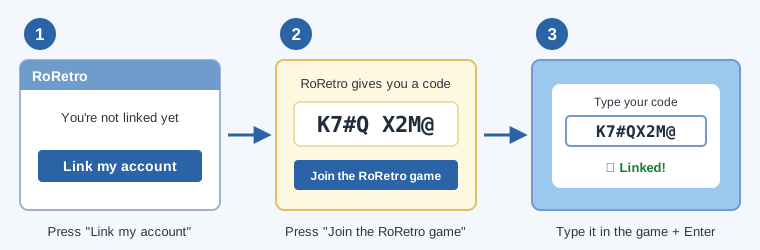
Step by step
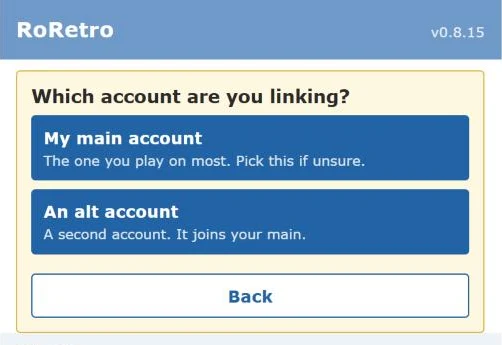
- Click the RoRetro button in your toolbar. At the top you'll see You're not linked yet. Press Link my account.
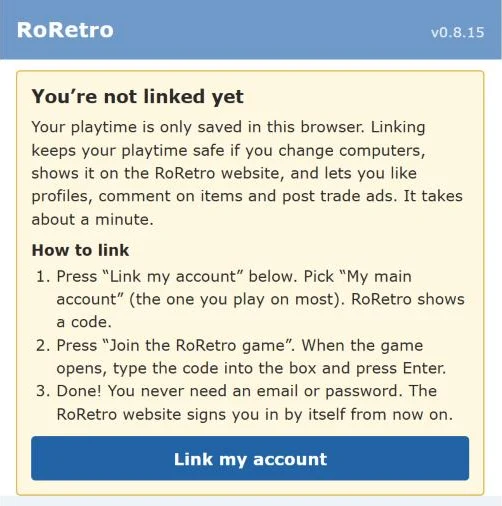
- RoRetro asks which account you're linking. Pick My main account (the one you play on most). Not sure? Pick main.
- RoRetro shows a code like
K7#QX2M@. Press Join the RoRetro game.
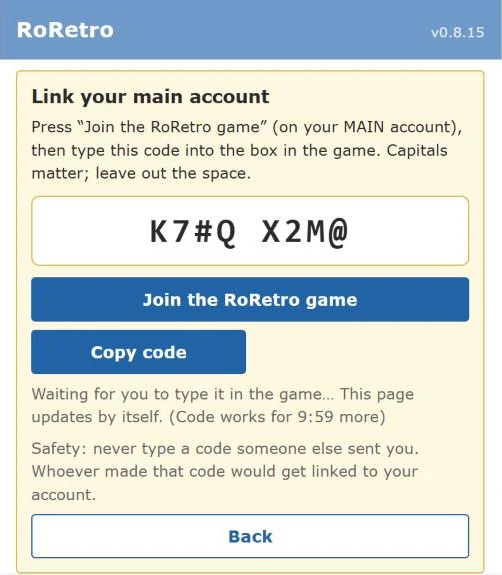
- In the game, type the code into the box and press Enter. Capital letters matter, and leave out the space in the middle. Or press Copy code first, then click the box in the game and press Ctrl+V.
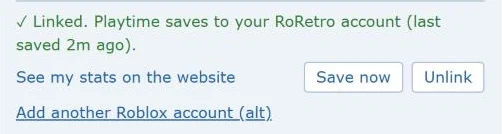
- Done! The popup now says ✓ Linked.
Stay safe: never type a code someone else sent you. Whoever made that code would get linked to your account. Codes run out after 10 minutes; press Get a new code if yours did.
From now on the RoRetro website signs you in by itself in this browser.